How to Factory Reset a Baofeng Radio (Old Menu and New Menu)
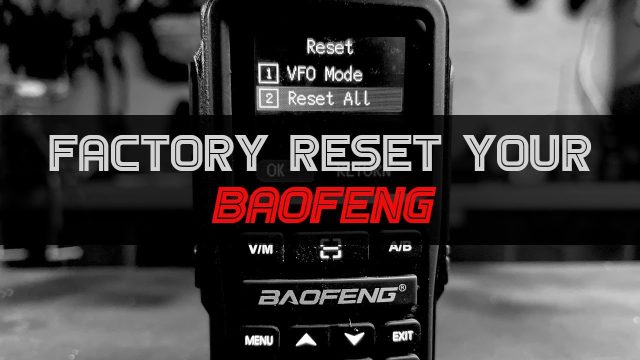
If you’re anything like me, you’ve probably screwed up your radio at some point. You start messing with settings, you don’t fully remember what you changed, and suddenly your radio just isn’t working right anymore. Don’t worry — it happens to all of us, and it’s an easy fix. In this post, I’ll walk you through how to factory reset your Baofeng radio, specifically covering the GM series. I’ll be using the Baofeng UV-5G Plus and the Baofeng UV-5G Mini as examples, since these two radios actually use slightly different menu systems. The UV-5G Plus runs the older-style menu, while the UV-5G Mini has the newer menu layout. I’ll show you how to reset both so you can wipe the slate clean and start fresh.
What Is a Factory Reset?
A factory reset restores your radio back to its original, out-of-the-box settings. This clears out any custom configurations, channel setups, or menu changes you may have made — intentionally or accidentally — so you can start programming the radio from scratch. It’s a handy troubleshooting step if your Baofeng radio starts acting up or if you just want a clean slate to reprogram it.
Resetting the Baofeng UV-5G Plus (Old Menu System)
The UV-5G Plus uses Baofeng’s older, classic menu system that longtime radio users will probably recognize. Here’s how to factory reset it:
- Press the Menu button once.
- Use the Down Arrow to scroll down to option 42, which will display as “RESET.”
- Press Menu again to select it.
- Press the Down Arrow so that “ALL” is flashing on the screen.
- Press Menu again.
- Confirm the reset by pressing Menu one more time.
Once confirmed, your UV-5G Plus will power back on automatically, fully reset to factory default settings.
Resetting the Baofeng UV-5G Mini (New Menu System)
The UV-5G Mini uses Baofeng’s newer, more streamlined menu system, so the steps look a little different:
- Press the Menu button.
- Scroll down to Radio Set and press Menu again.
- Scroll up to option 26, labeled “RESET.”
- Press Menu again.
- Scroll down to submenu option 2, “RESET ALL,” using the Down Arrow.
- Press Menu again.
- The screen will display “SURE TO RESET.” Confirm by pressing Menu once more.
That’s it — your UV-5G Mini is now factory reset and ready to be reprogrammed from scratch.
Wrapping Up
And there you have it — both radios factory reset and ready for you to go mess them up all over again (kidding… mostly). Seriously though, this is a feature I use all the time myself, so if you’ve been fumbling through your radio’s settings, know that you’re definitely not alone. Whether you’re running the older menu system on the UV-5G Plus or the newer layout on the UV-5G Mini, resetting your radio is quick and painless once you know the steps.
Prepare, defend, survive. I’ll see you in the next one.